What “good” looks like for your first AI image
You’ll know your first AI image is “good” when it’s usable, not perfect. Aim for a clear subject, a readable composition, and a style that matches your purpose (social post, slide deck, product mockup). If you can crop it without ruining it, and it still makes sense at thumbnail size, you’re in a strong place. Expect small flaws—odd fingers, slightly off text, or mushy details—because first drafts are normal here. “Good” also includes practical basics: you can explain what it shows in one sentence, and you have a plan to remake it if you need a cleaner version.
Picking a text-to-image tool without getting overwhelmed
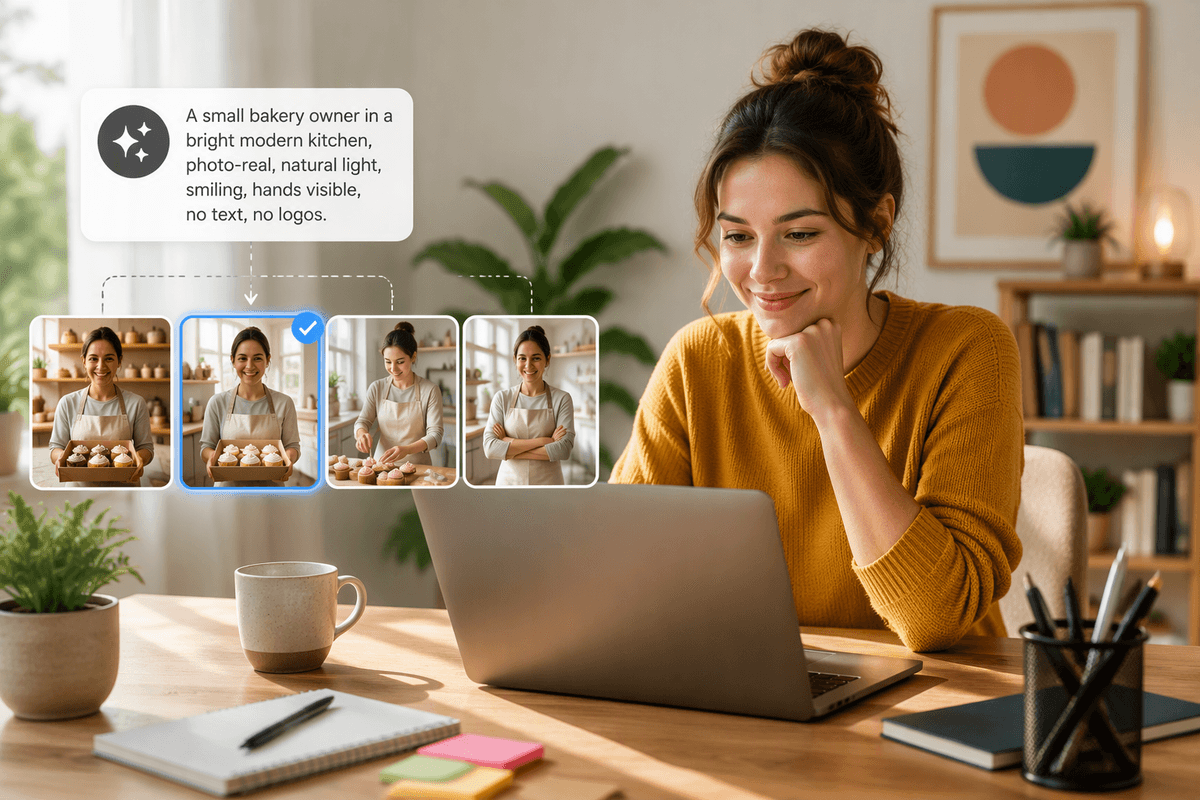
You’re probably choosing between “fast and simple” and “more control.” For a first try, pick a tool that lets you type one prompt, see 4–8 options, and rerun variations with one click. If you already use a design app (like Canva or Adobe), starting with the built-in image generator can reduce friction because your canvas, fonts, and exports are already there. If you want the widest range of styles and stronger results, use a dedicated generator with an easy web interface and a clear “commercial use” note.
Before you commit, check two practical things: usage rights (can you use it for client work or ads?) and cost (free tiers often add watermarks, slower queues, or limited upscales). Also notice whether it offers aspect ratio and “variations”—those two controls matter more than a long menu of artistic styles.
The prompt basics: subject, setting, style, and constraints
Most first prompts fail because they describe a vibe, not a picture. Start with four building blocks: subject (the main thing), setting (where it is), style (how it should look), and constraints (what must or must not be true). A simple template is: “A subject in a setting, style, constraints.” For example: “A small bakery owner holding a box of cupcakes in a bright modern kitchen, natural window light, photo-real, 35mm lens look, smiling, hands visible, no text, no logos.”
Constraints are where beginners get reliable results. Add specifics like camera angle (“eye level,” “top-down”), composition (“centered,” “room for headline on the left”), and what to avoid (“no watermark, no brand marks, no extra fingers”). More constraints can reduce variety and sometimes make the tool ignore parts of your request, so keep them to the few details you’ll actually notice.
From first draft to better results in three iterations
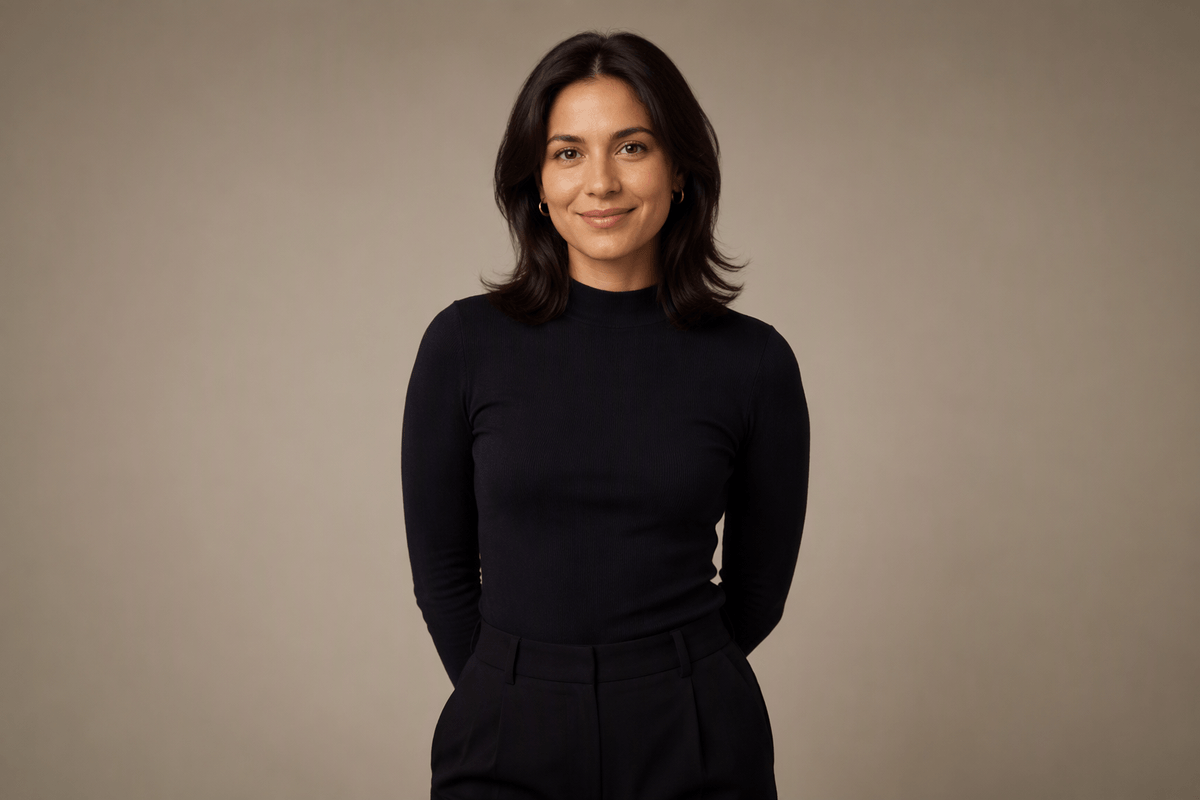
Your first prompt is a starting point, not a test. Run it once, pick the single image that’s closest to your goal, and name what’s wrong in plain words: “the face looks off,” “the background is too busy,” “it feels like stock photo,” or “there’s no empty space for a headline.” That list becomes your second prompt.
Iteration 1: get the scene right. Keep the same subject and setting, but fix the biggest mismatch (angle, lighting, age, mood, or composition). Iteration 2: tighten the style. Add one style anchor (for example “clean editorial photo” or “flat vector illustration”), then remove anything that fights it. Iteration 3: correct the small failures with constraints: “hands behind back,” “no text,” “simple background,” “single person,” “no logos.”
Each rerun costs time or credits, so don’t chase perfection—stop when it’s usable and repeatable.
Getting consistent style and composition (without fancy jargon)
Consistency across a set of AI-generated images depends on keeping a few visual anchors unchanged. Keep the subject description and camera angle consistent, whether that means eye level, three-quarter view, or top-down. The same applies to the visual style. Repeating a defined phrase such as “clean editorial photo,” “bold flat vector,” or “minimal product render” gives each generation a shared visual language. A simple composition rule, such as placing the subject in the center with negative space on the left or keeping the horizon in the top third, helps tie the images together further.
Once an image gets close to the desired result, treat it as the baseline for the next round. Reuse the original prompt and adjust one detail at a time, keeping the aspect ratio unchanged. This makes it easier to see which change actually improved the result and reduces unnecessary drift in faces, colors, or framing. More rerolls also mean higher credit costs, so keeping a copy of the prompt that produced the strongest result is worthwhile. Over time, that prompt becomes a reliable starting point for the rest of the set rather than something rebuilt from scratch each time.
Common beginner traps: hands, faces, logos, and text
You’ll run into four classic “why does it look like that?” problems. Hands fail when they’re doing something specific (holding, pointing, interlaced fingers). The simplest fix is to change the pose: “hands in pockets,” “hands behind back,” or crop to “waist-up portrait.” Faces can look slightly wrong when you ask for extreme emotion, harsh lighting, or a tiny subject in a wide scene—try “soft natural light,” “neutral expression,” and “close-up head-and-shoulders.”
Logos and text are the biggest trap for usable designs. Most generators will invent brand marks and produce misspelled, warped words. Add “no logos, no watermark, no text,” then place real text later in Canva/PowerPoint/Photoshop. It’s an extra step, but it’s faster than burning credits rerolling unreadable lettering.
Small settings that matter: aspect ratio, variations, upscales
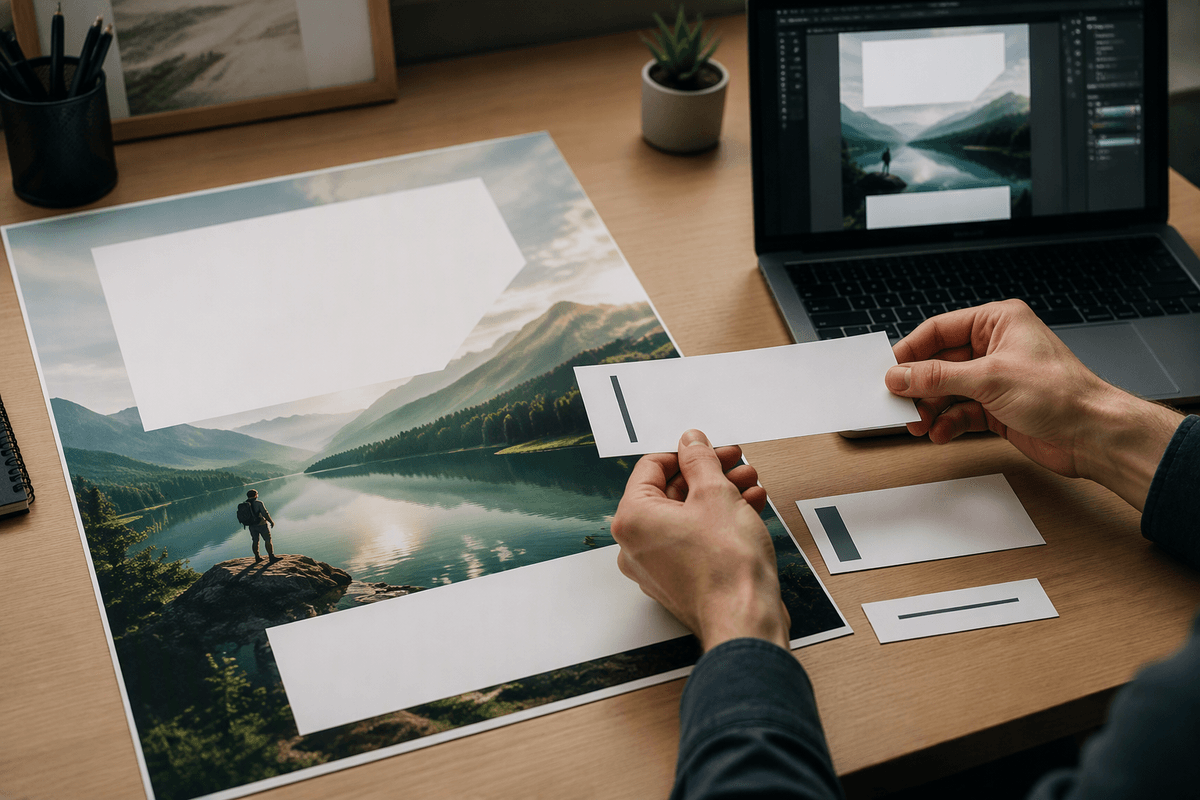
Small settings matter most when an image needs to work within a specific layout rather than simply look good on its own. Start with the aspect ratio that matches the final destination: square (1:1) for feeds, portrait (4:5 or 9:16) for Stories and Reels, and wide (16:9) for slides or banners. Cropping a mismatched image afterward may cut off the subject’s head or hands, or remove the negative space reserved for a headline.
Variations are useful when the overall concept is already working but a few details need adjustment. They preserve much of the original composition while allowing changes to the pose, background clutter, facial realism, and other elements. When the composition itself is wrong, starting again from the prompt is usually more effective than trying to refine a weak base image.
Upscaling belongs near the end of the process, mainly for export, print, or tight crops. The extra processing time or credits are easier to justify once the final image has been chosen. Upscaling may also make existing flaws more obvious, including distorted fingers or smeared edges, so there is little benefit in applying it to every variation.
Use, share, and improve: practical next steps after image one
Once you have one usable image, treat it like a starting asset, not a final deliverable. Export it at the size you need, then add real text and logos in your design tool instead of trying to generate them. Keep a simple “prompt log” (prompt, aspect ratio, what you changed, what worked) so you can recreate the look next week without guessing. Before you post or sell anything, read the tool’s usage rights and check whether your image includes recognizable people, brand-like marks, or trademarked characters—those can create headaches even when the generator allows commercial use.
A practical way to improve fast is to build a tiny set: make three images in the same style (hero, close-up, and background/texture). You’ll discover what stays consistent and what drifts, and you’ll end up with options instead of one fragile favorite.